Inspector Review Panel
Introduction
This guide outlines the enhanced workflow and features available to Inspectors within Abyss FabricTM, designed to streamline the review process for Points of Interest (POIs), provide actionable insights, and simplify reporting.
The Anomaly Review Panel is a purpose-built interface within the Abyss Fabric that allows Inspectors and MI Engineers to systematically review, validate, and finalize corrosion anomalies and Points of Interest (POIs) before generating inspection reports or planning GVI/CVI activities.
The review panel consolidates critical data, context, imagery, and decision tools into one streamlined experience supporting the Report framework and aligns with Engineering Review Workflows.
Step-by-Step Guide
Following is a step-by-step guideline focused on the Inspector Review Panel within Abyss FabricTM.
It is intended to help inspectors efficiently review component-level data and Points of Interest (POIs), and perform key actions
1. Accessing the Inspector Review Panel
Navigate to the Inspector workspace within the MI workflow.
2. Reviewing Component
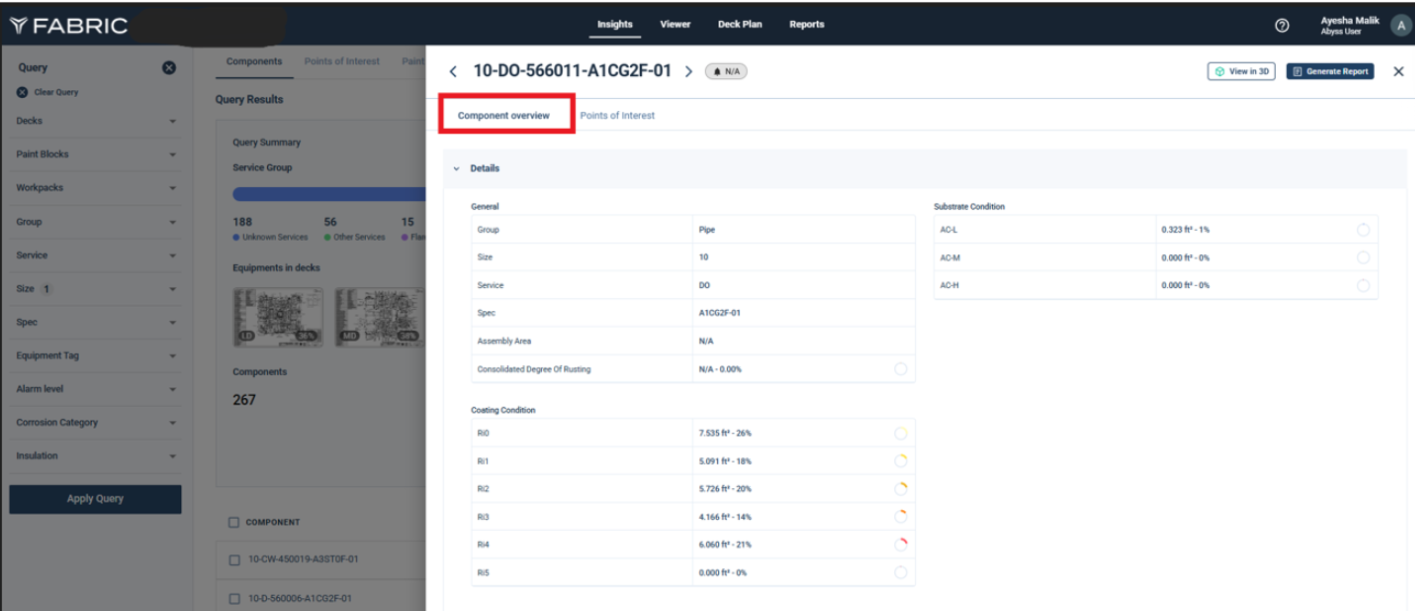
a. Component Metadata Panel
View structured metadata at the component level
Key details displayed:
Component name
Component Level Categorization (Condition Assessment/Classification)
Corrosion
Coating condition
Size
Spec
Component Area
Service
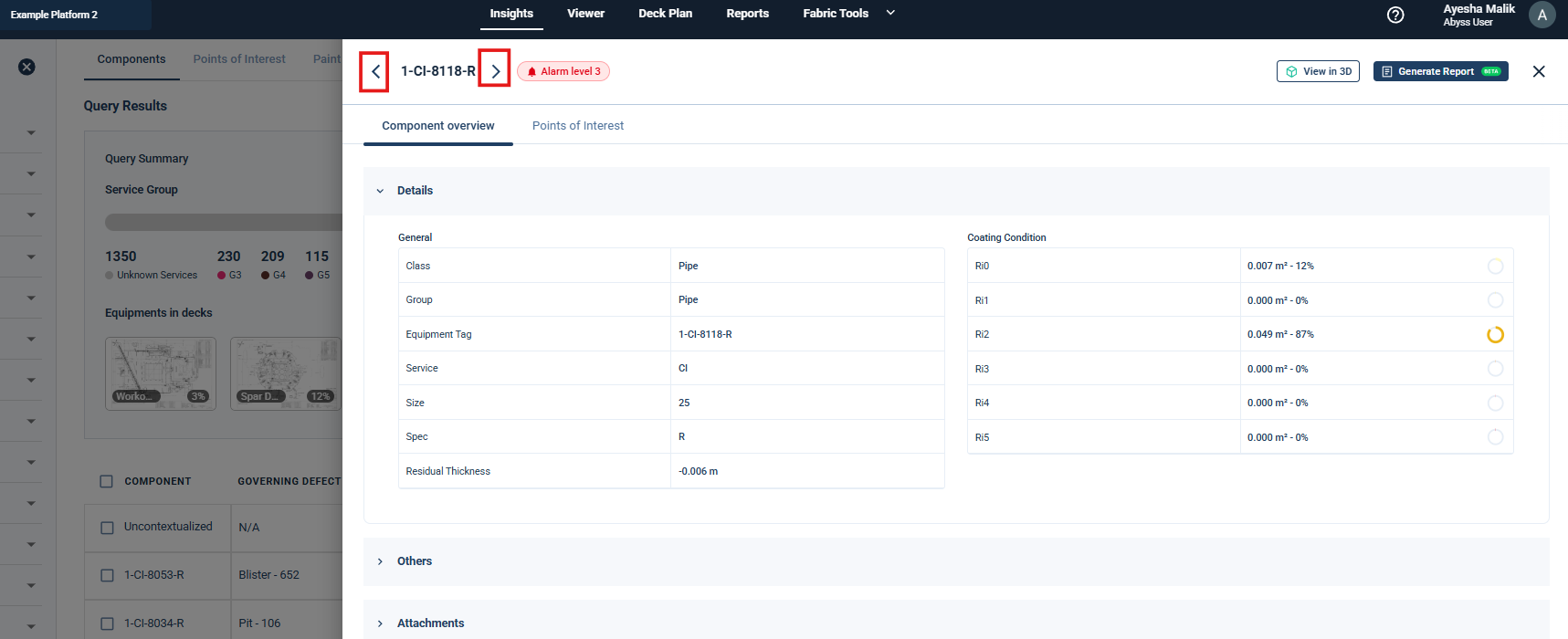
b. Component Navigation
Use the arrows in the Review Panel to move between components, whether the filters are applied or not.
c. Component Attachments (Digital Isometric Reference)
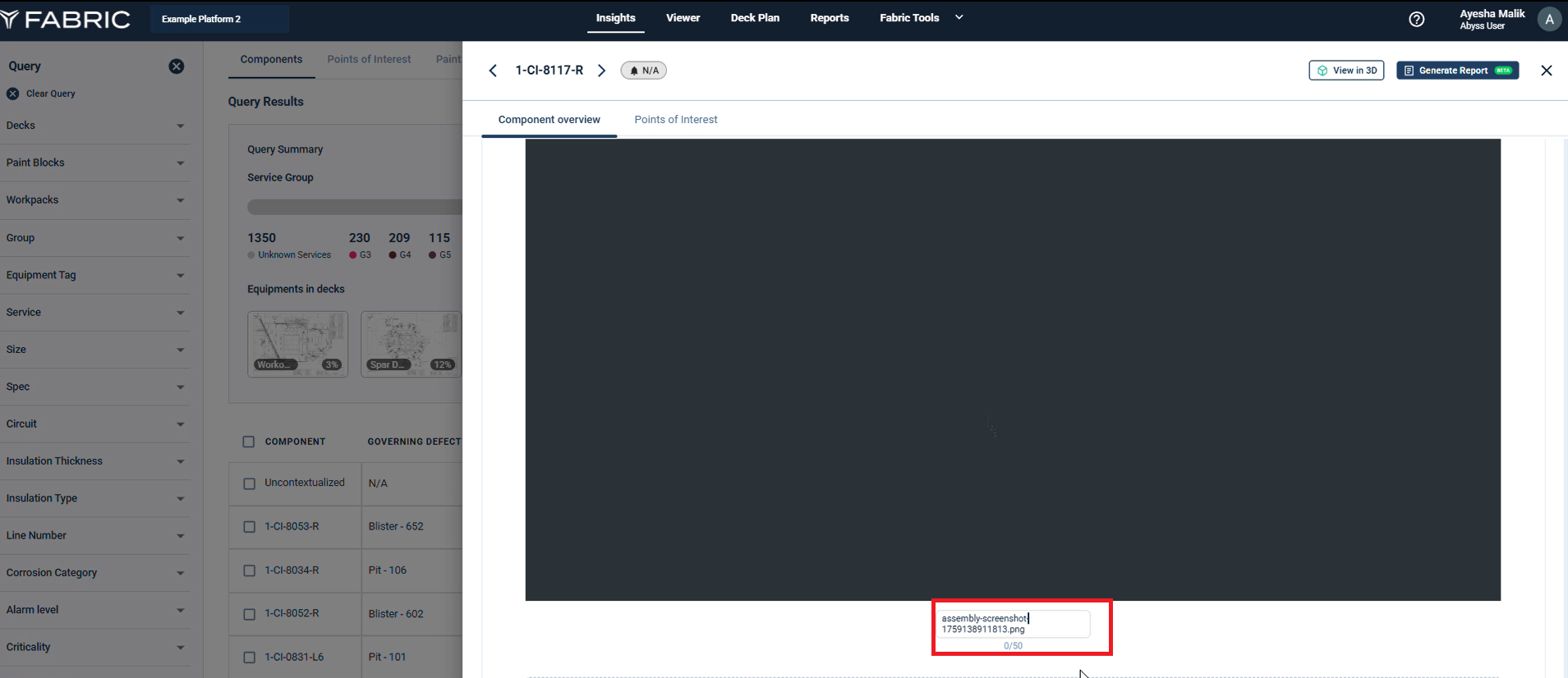
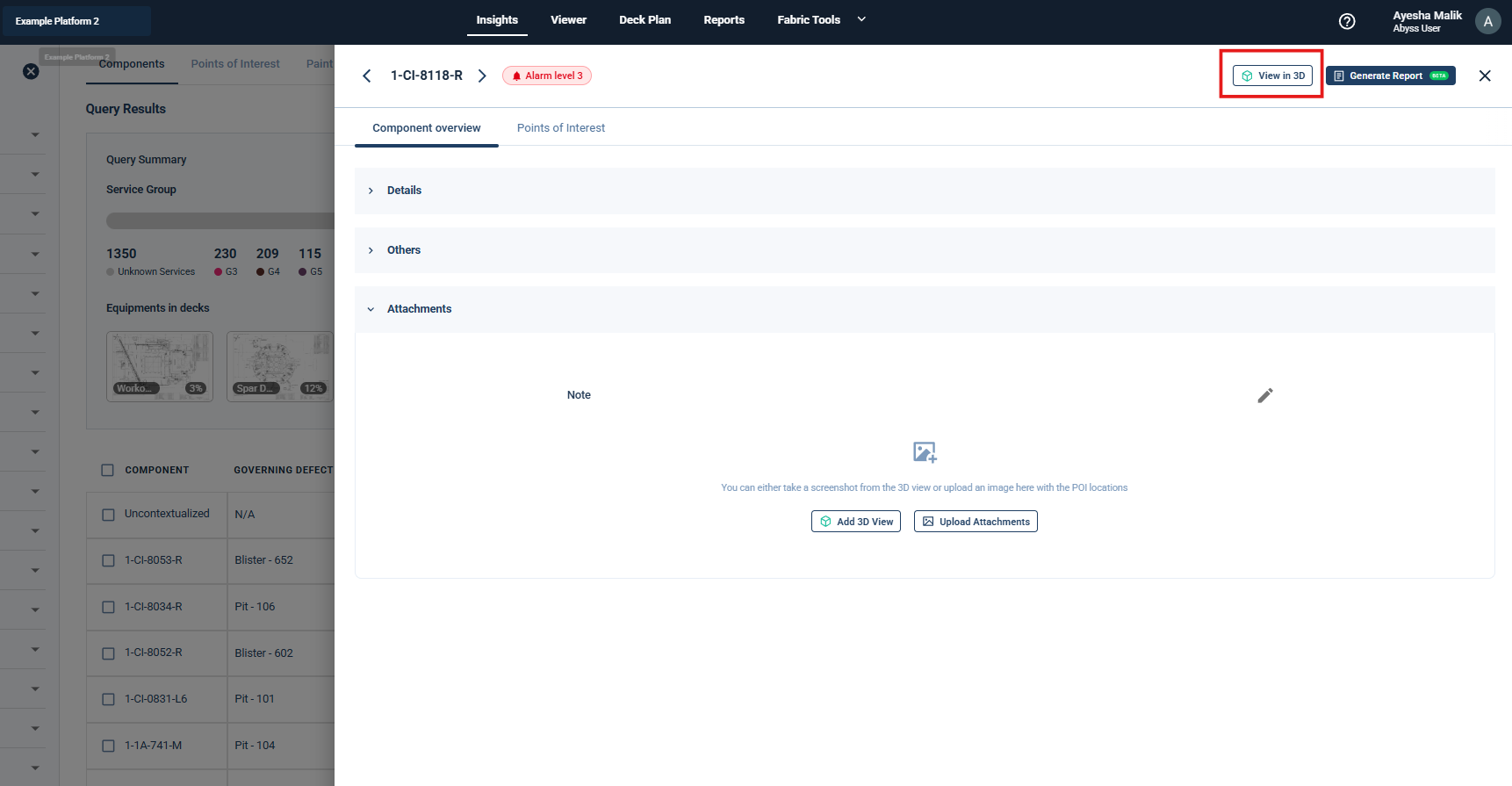
Captured component-level images (overview screenshots) are stored in the Component Overview tab.
These serve as digital isometrics when aligned using the compass.
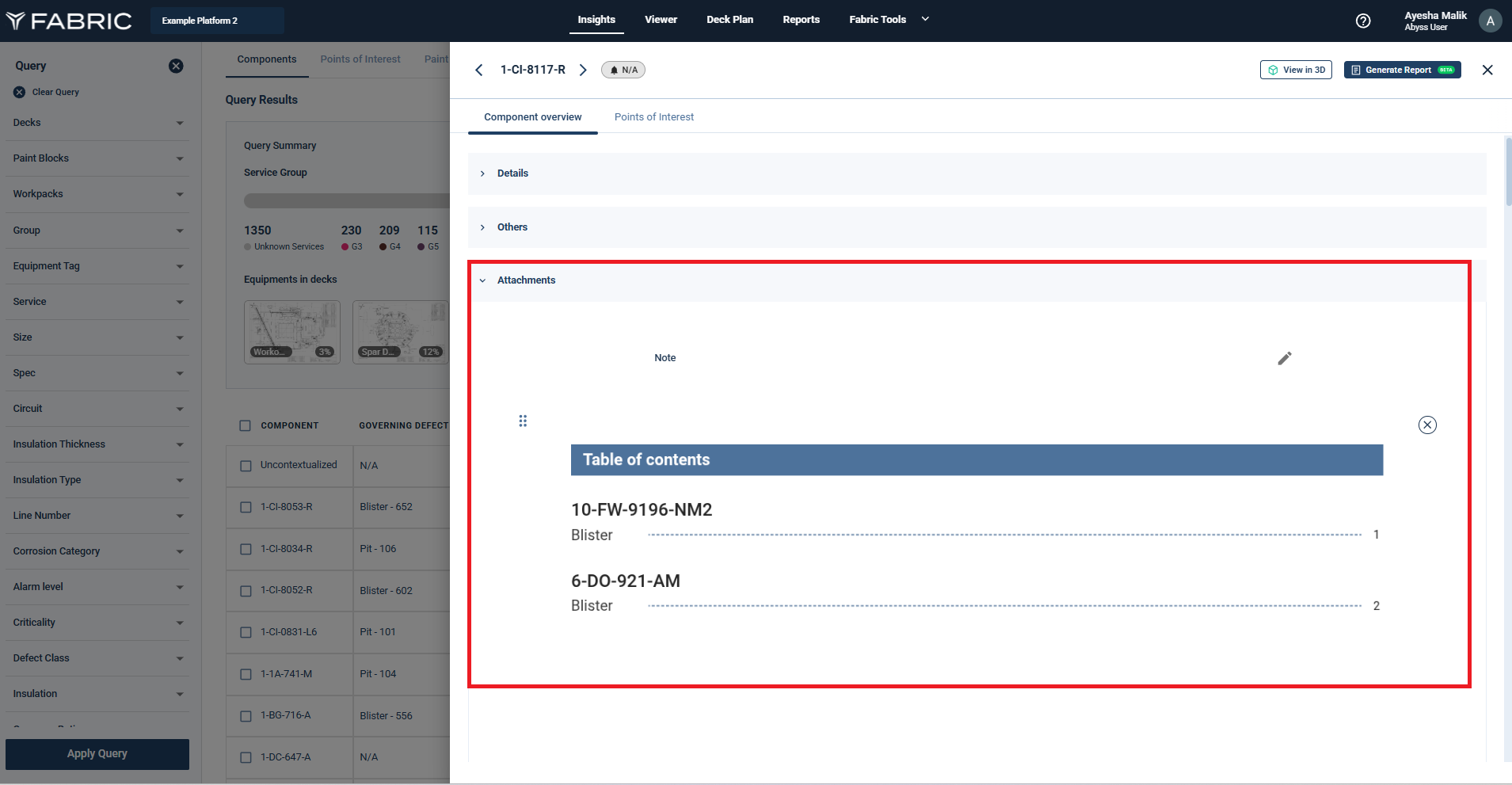
Captions can be updated for the attachments
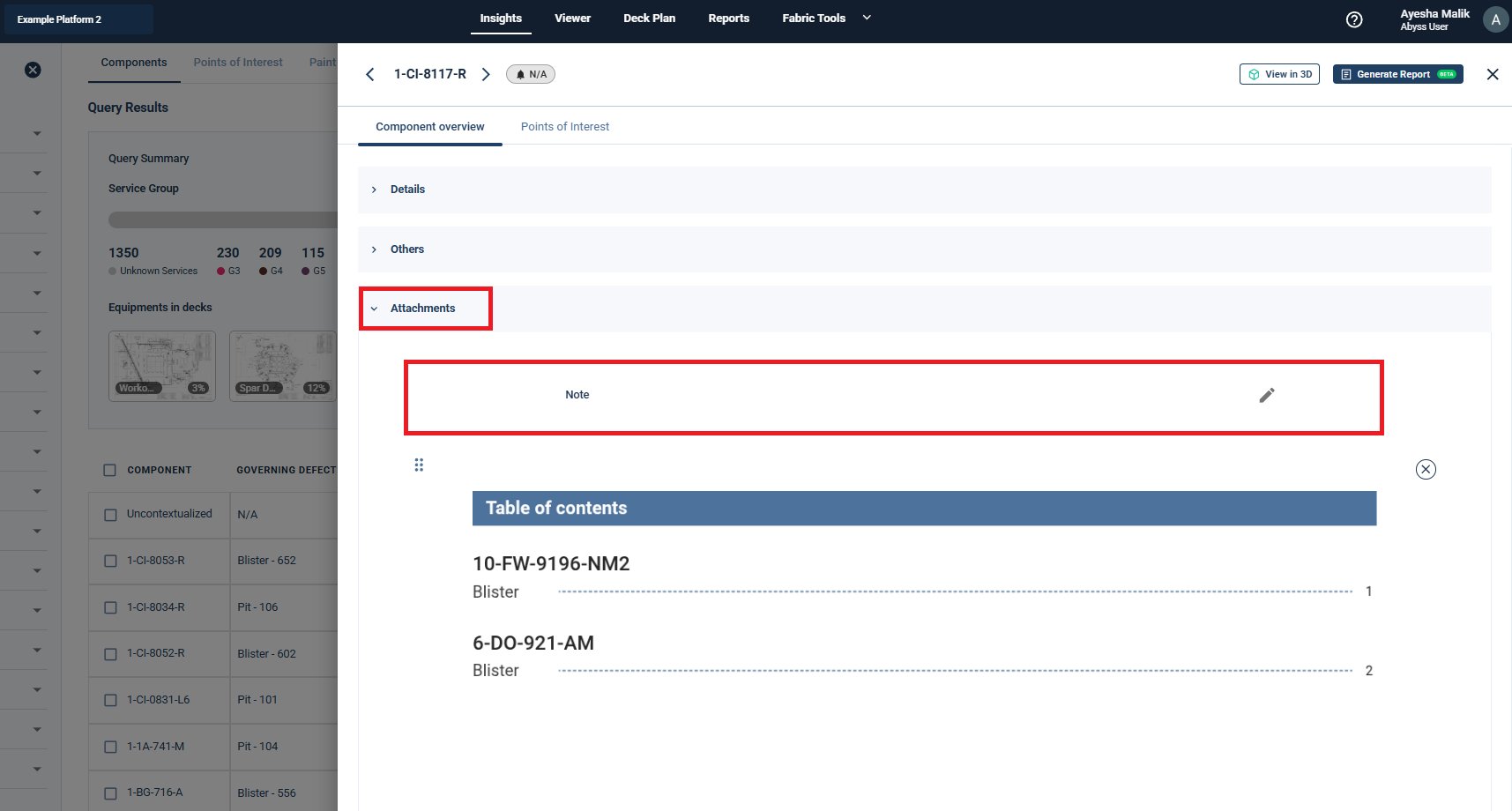
Notes can also be added/edited if required.
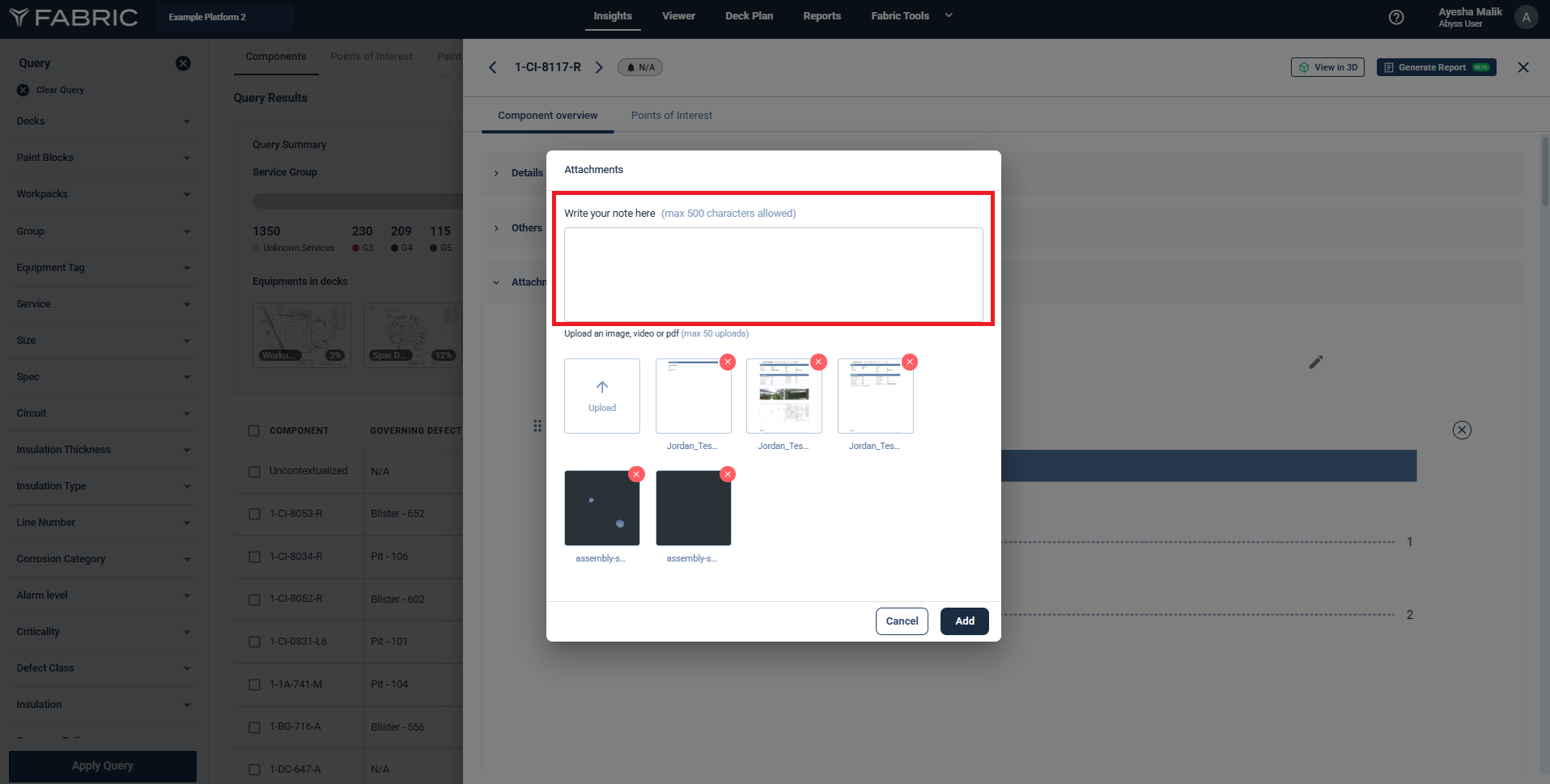
Images can also be uploaded from your own system
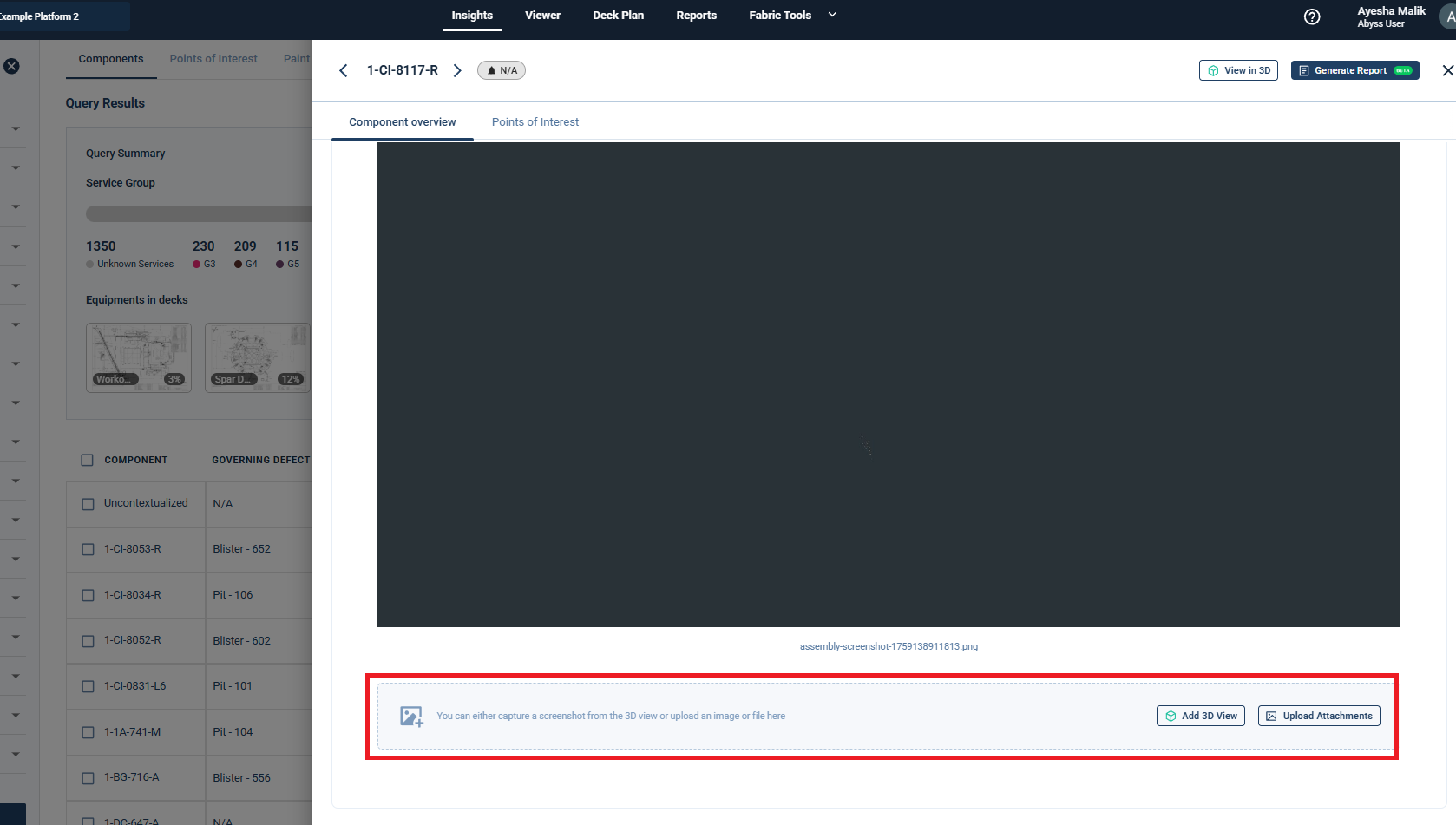
d. Quick Access to Component in 3D Viewer
The inspector can click on the “View in 3D” button and switch to the 3D viewer.
3. Reviewing POIs
a. POI Metadata Panel
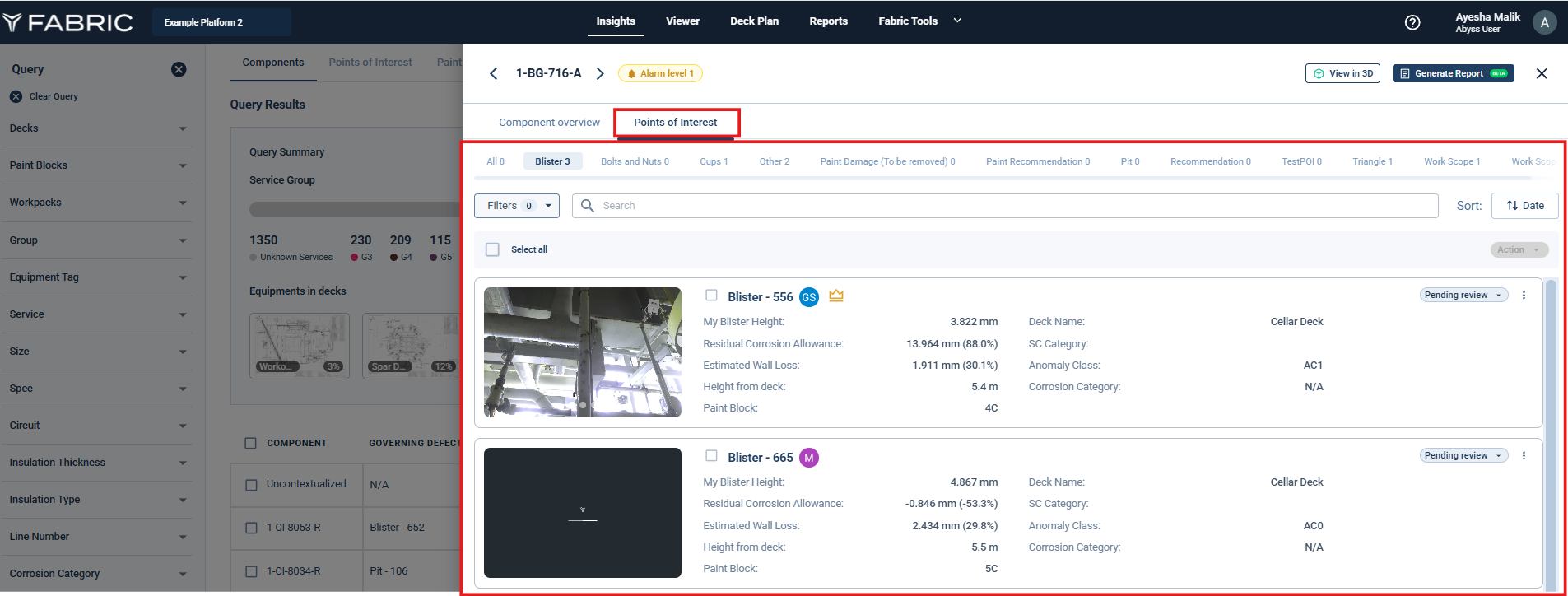
View structured metadata at the POI level
POI-specific metadata such as:
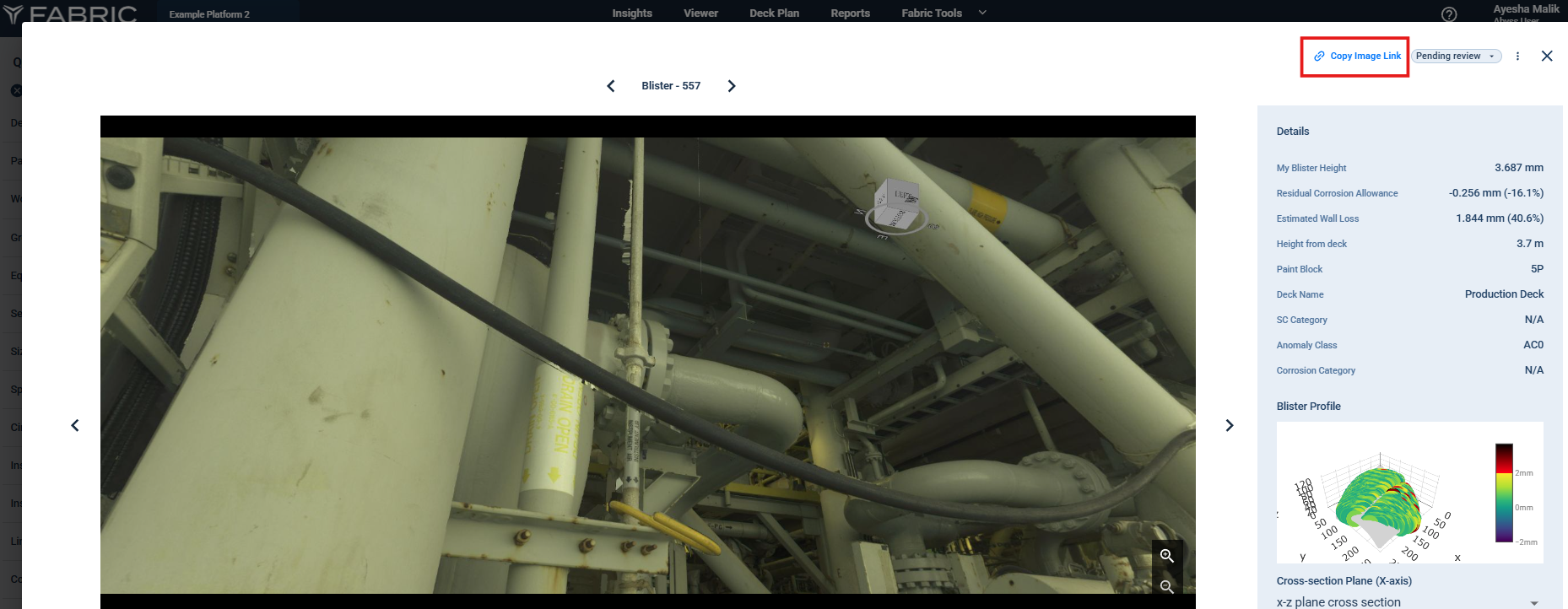
Blister Height (via Blister Tool)
Assessment/ Category
Estimated Wall Loss
Residual Corrosion Allowance
Paint Block
POI Height from Deck
b. Advanced Filtering Options
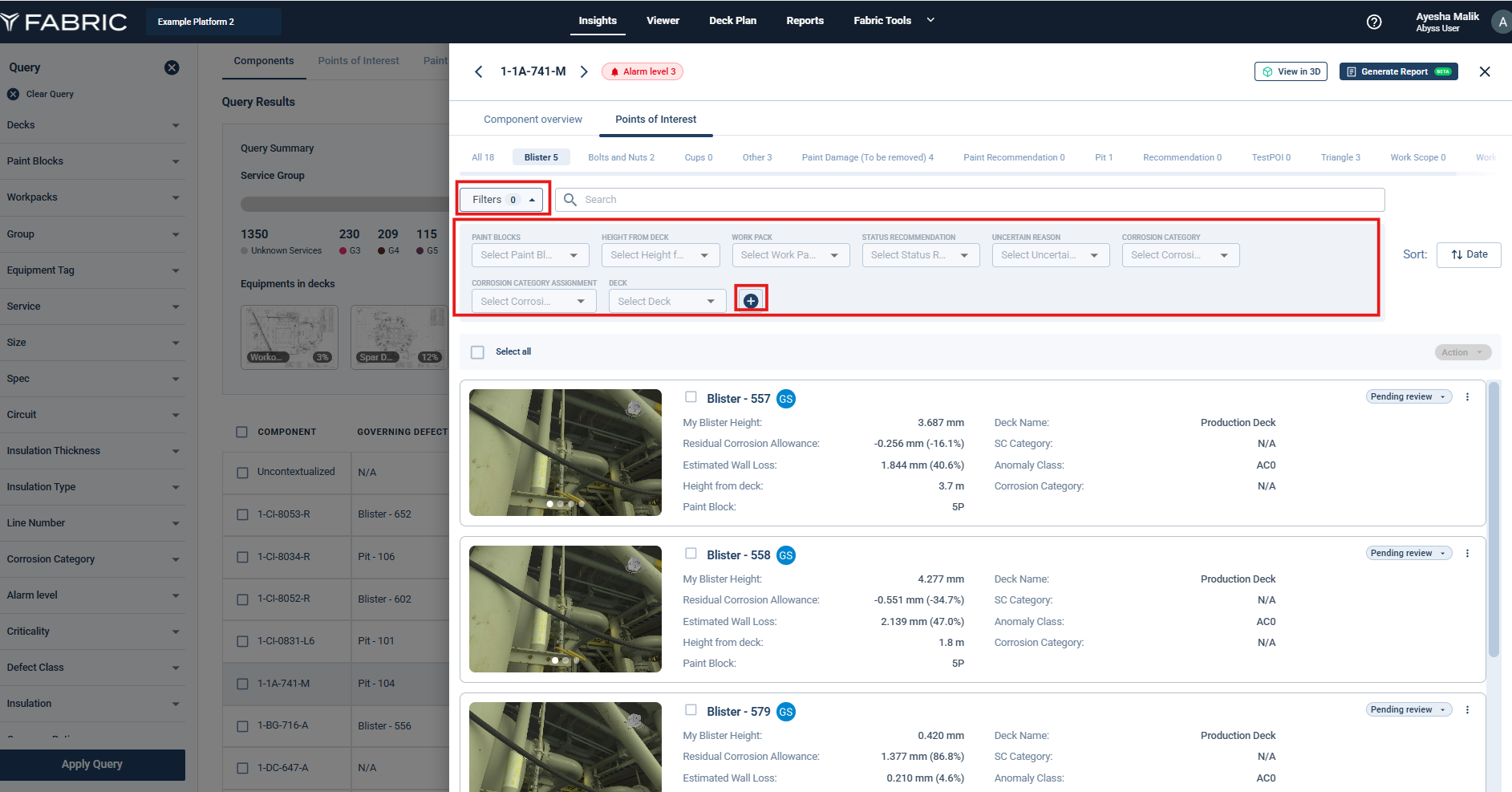
Use filters to triage and sort POIs based on:
POI Type (e.g., Blister, Pit, CUPS)
Category
Paint Block
Deck Height
Review Status
c. Initial POI Review Workflow
When the user accesses the Points of Interest Tab in the Review Panel, they are presented with a list of Points of Interest (POIs), such as blisters, pits etc.
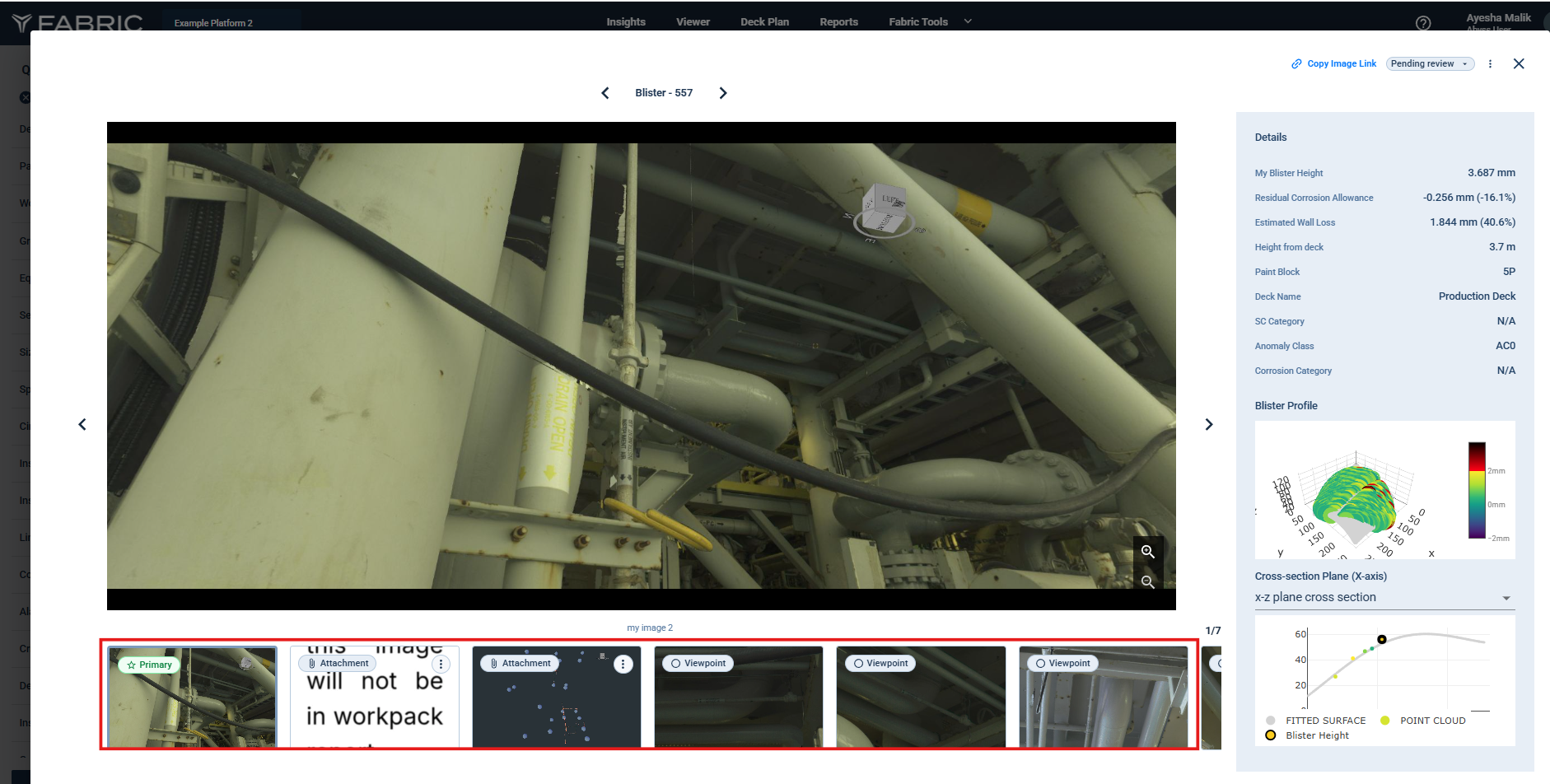
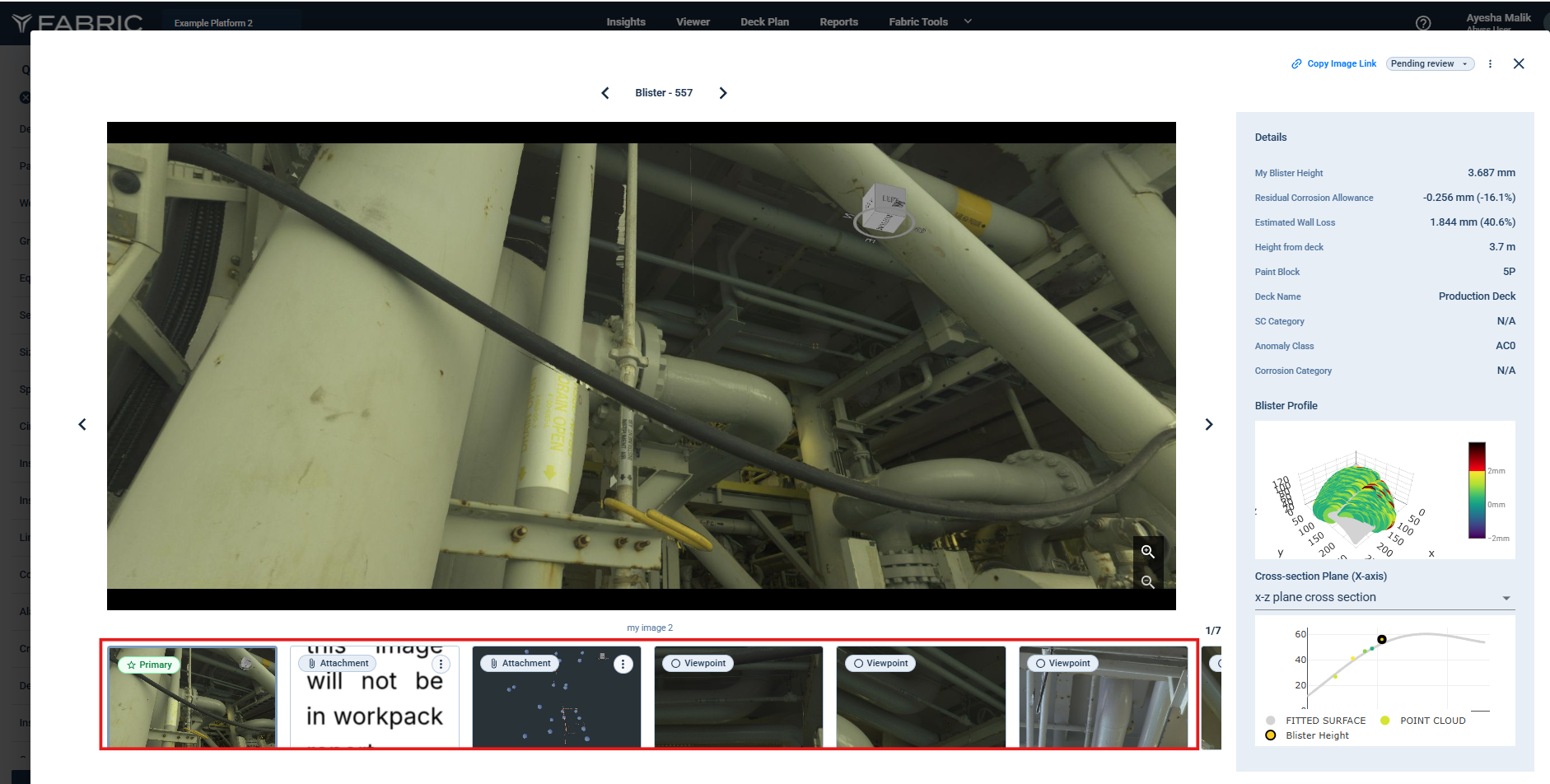
Clicking on any thumbnail opens a detailed view with the primary image and suggested viewpoints. Any attachments for the POI will also be visible here.
Primary image at the top, the image captured for the relevant POI during review.
Below it, any suggested viewpoint images are shown in the Viewpoint Images section.
Any additional content, like reference screenshots, appears as Attachments.
Inspect each POI through multiple pre-defined viewpoints or review the attachments.
d. POI Navigation in Review Panel
Navigate between POIs or images(for the selected POI) using the arrows in the Review Panel.
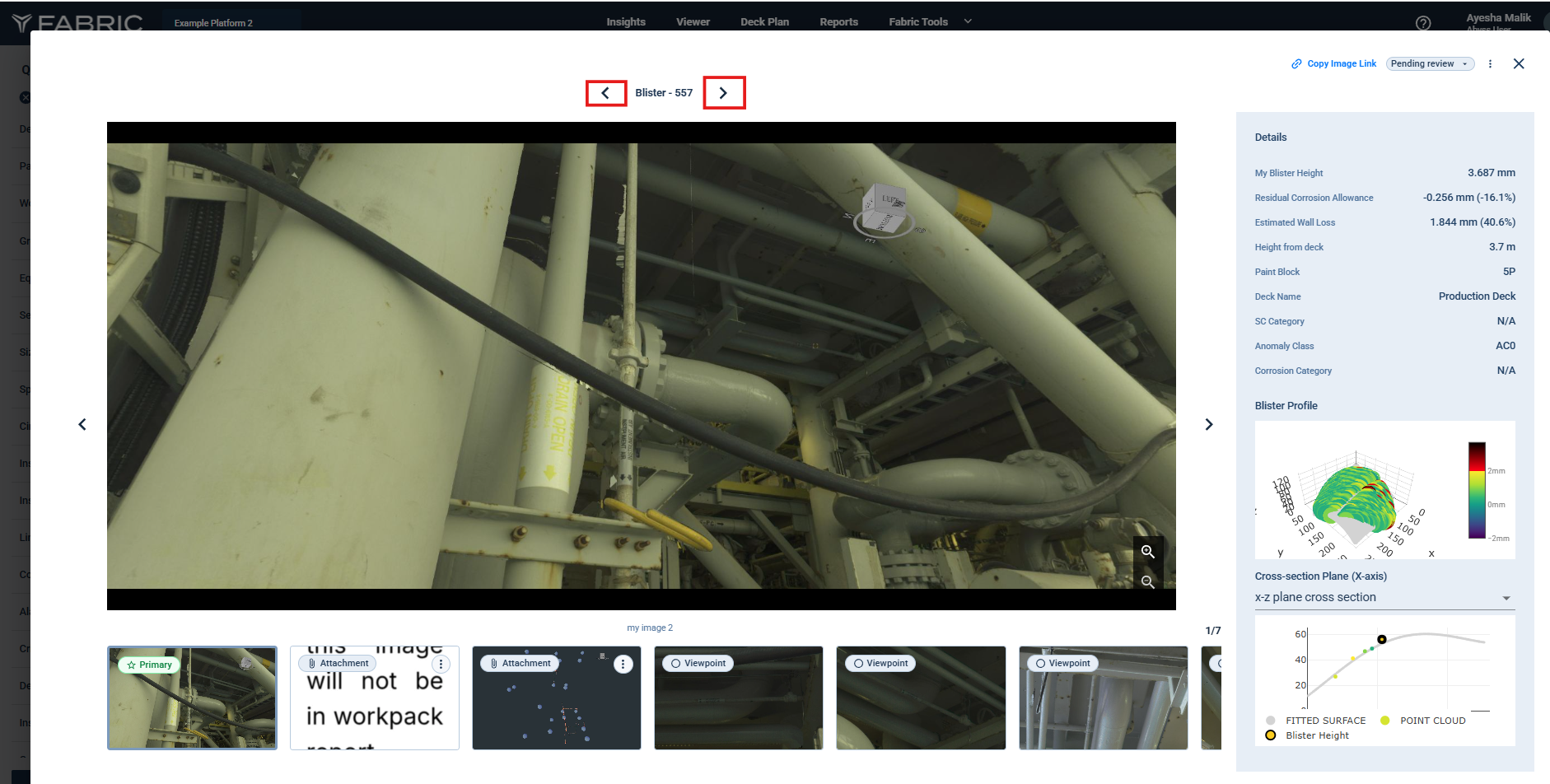
POI Navigation
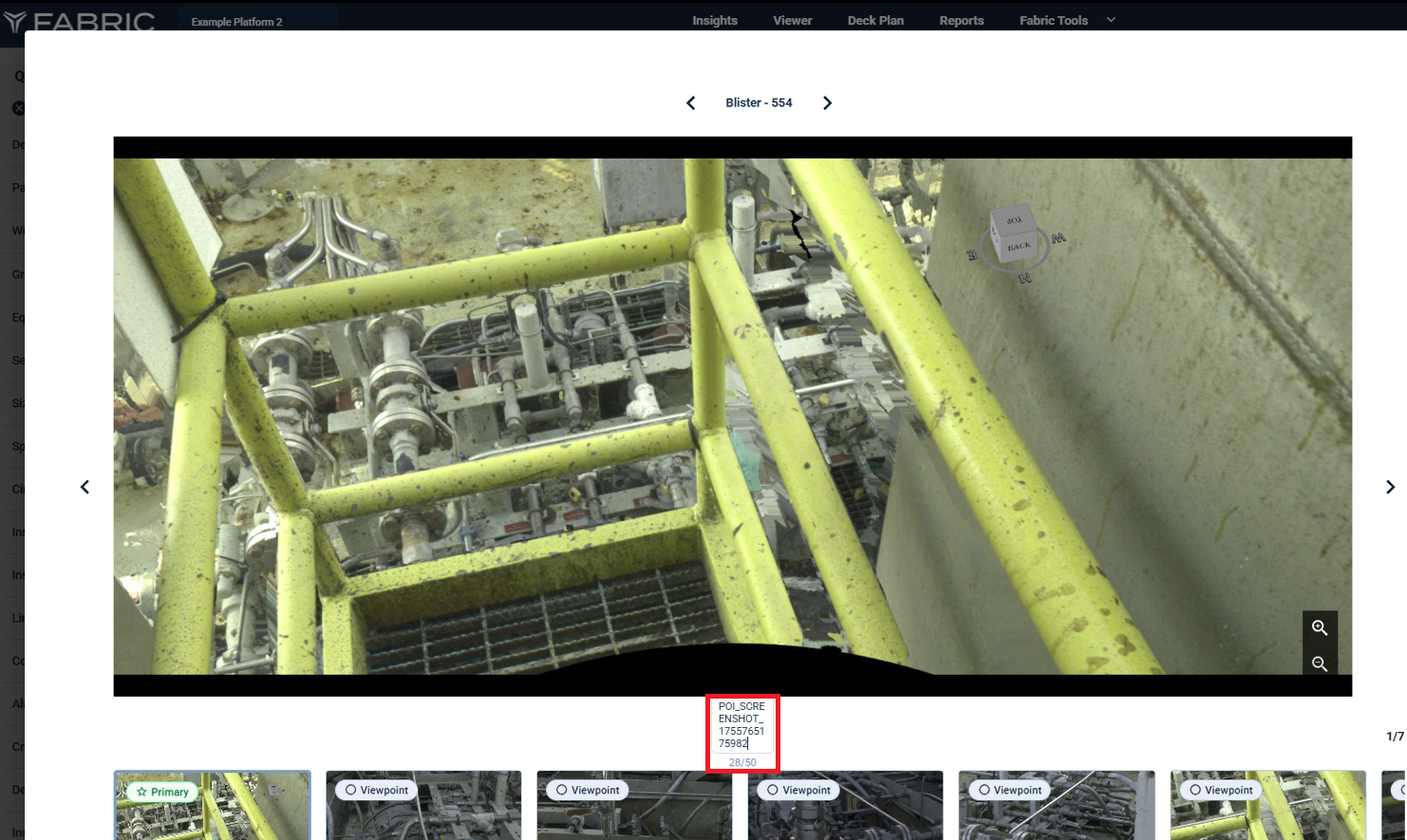
POI image captions can also be updated by clicking on it except for the viewpoints. Viewpoint captions are linked to the Viewer and are added as Image name, hence these can’t be edited.
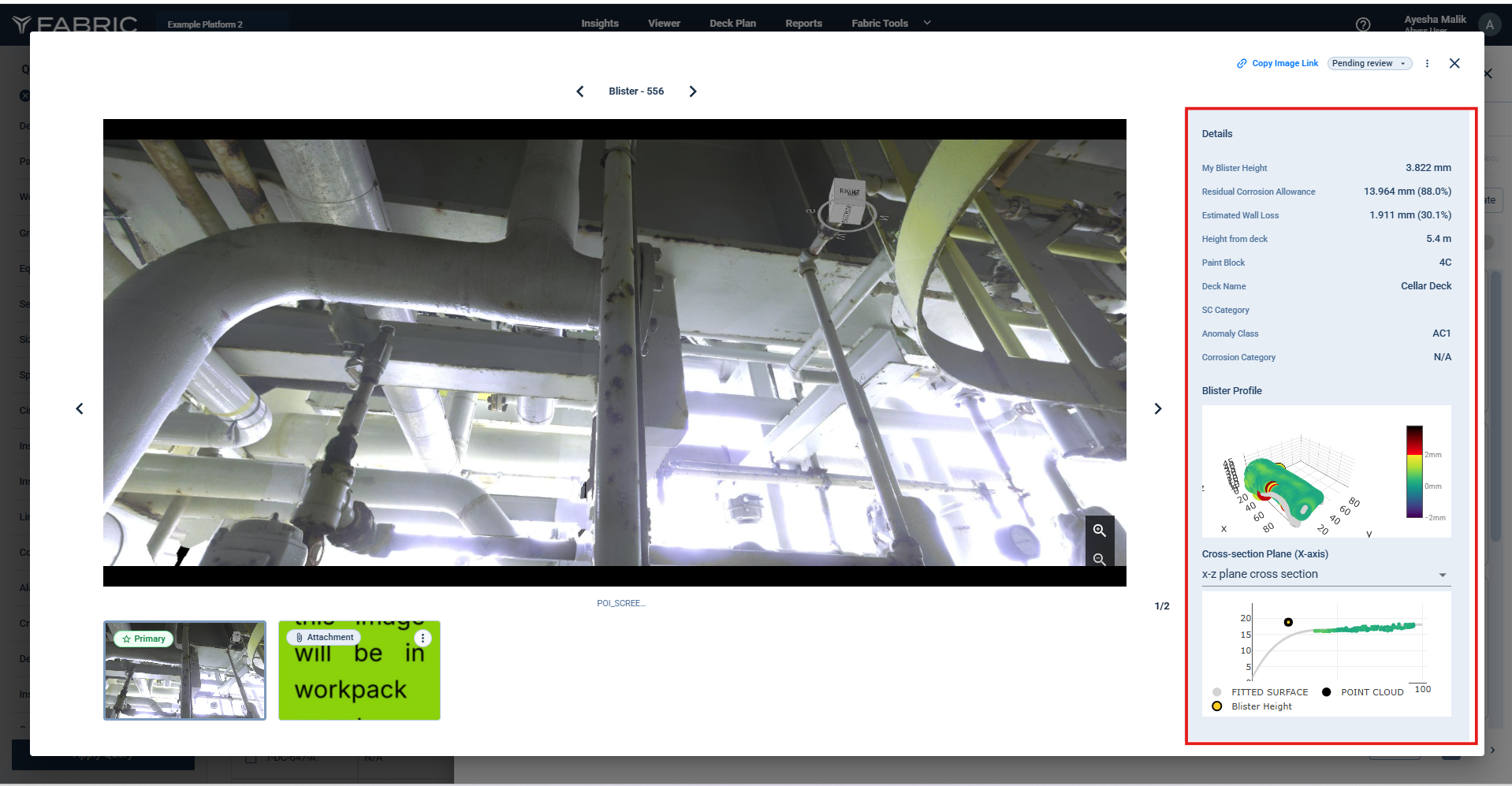
e. Inline Blister Height Profile and Details
Analyze blister profile and details (like wall loss, RCA etc) directly within the review panel.
f. Assigning Action Items (Scoping POIs)
Inspectors can assign specific actions to each POI in the Review Panel:
No Follow-up Required
Pending Review
CVI (Close Visual Inspection)
GVI (General Visual Inspection)
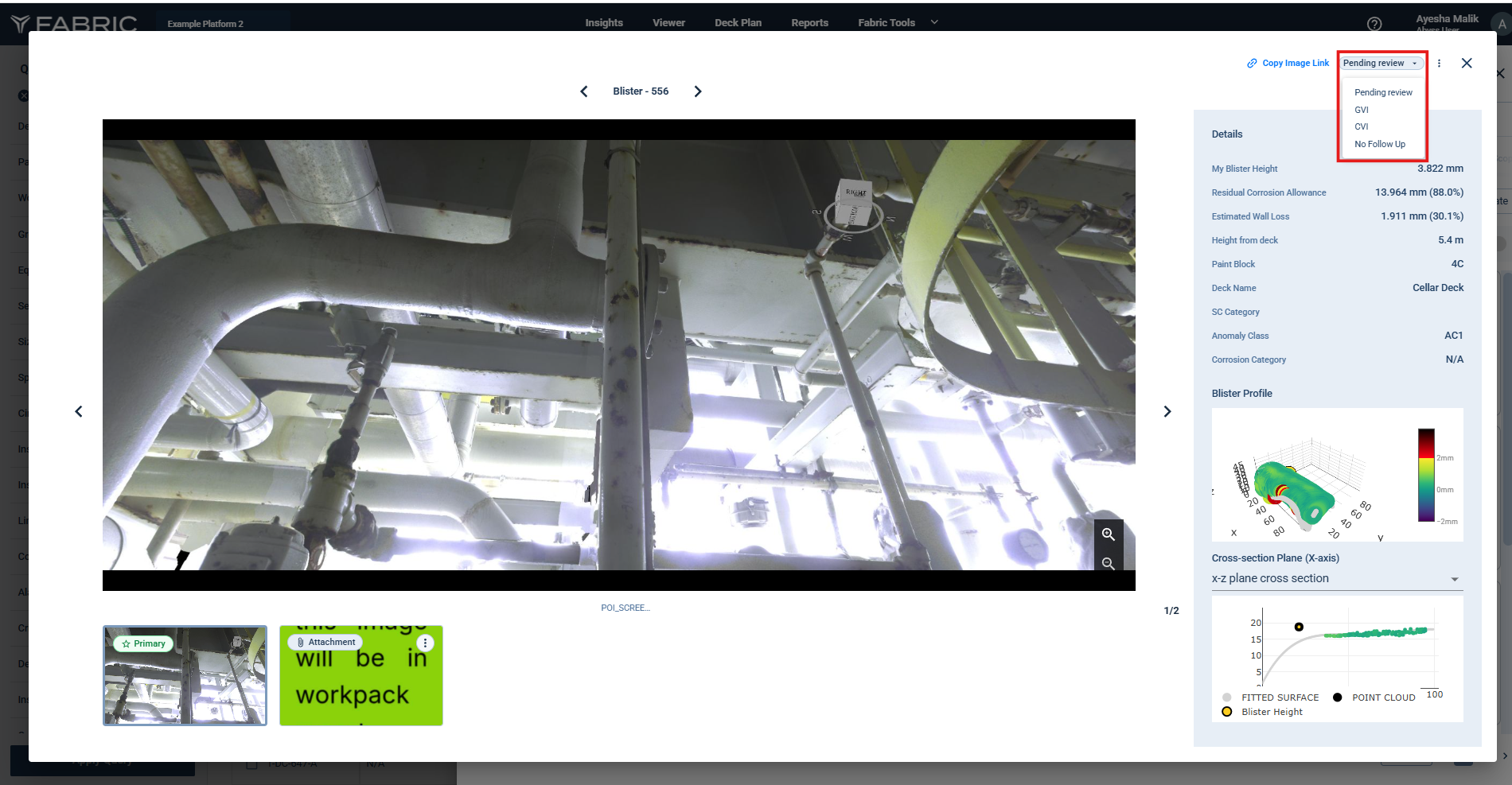
This classification defines the scope of work.
Review Statuses can also be updated in bulk by selecting multiple POIs or for all POIs using the “Select All” button and choosing the Review Status for the selected POIs.
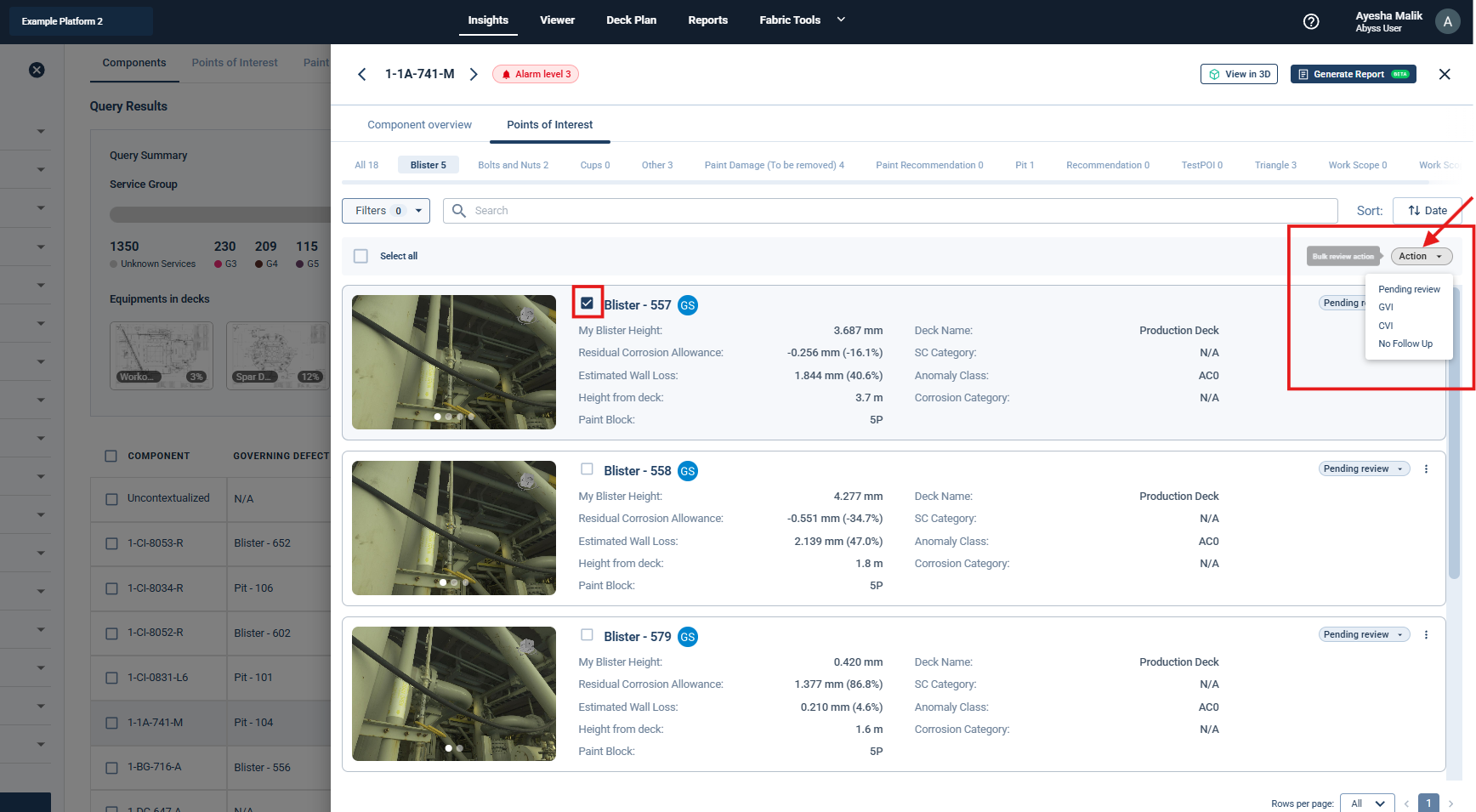
Note: Only POIs marked as CVI or GVI are included in the final inspection report.
POIs labeled as "Pending Review" or "No Follow-up Required" are excluded from the report to keep it focused.
g. Quick Access to POI in 3D Viewer
From the Review Panel, inspectors can instantly jump to the 3D Viewer for any selected POI by clicking on the “View 3D” Button.
The relevant POI is automatically highlighted in the 3D viewer.
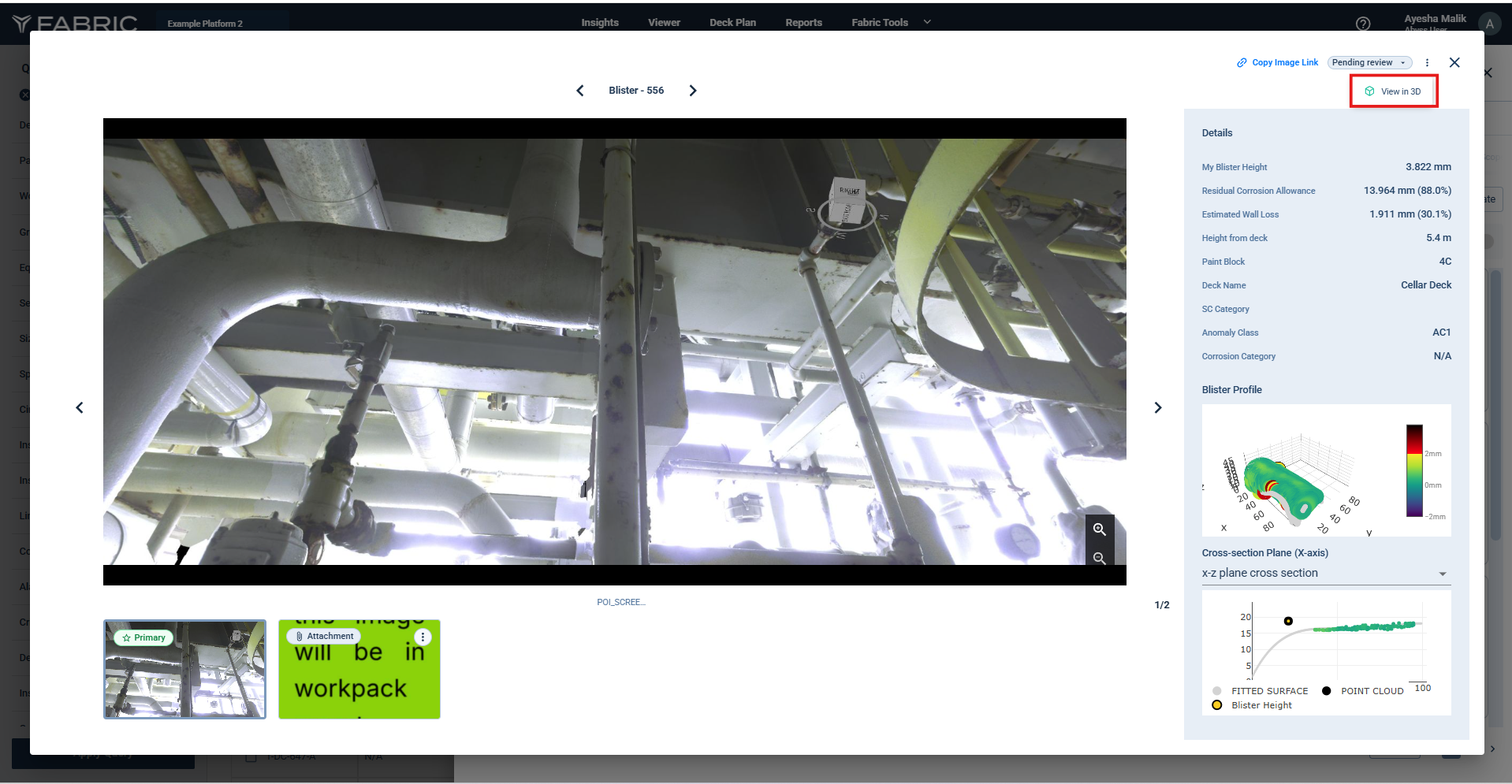
Copy Image View Link will open the modal view in another tab.