Component Inspection Reporting
Step by Step Guide
Following is a step-by-step guideline focused on the Component Inspection Reporting tools within Abyss FabricTM.
It is intended to help inspectors efficiently review component-level data and Points of Interest (POIs), and generate structured inspection reports.
a. Report Generation
Note: Only POIs marked as CVI or GVI are included in the final inspection report.
POIs labeled as "Pending Review" or "No Follow-up Required" are excluded from the report to keep it focused.
i. Insights
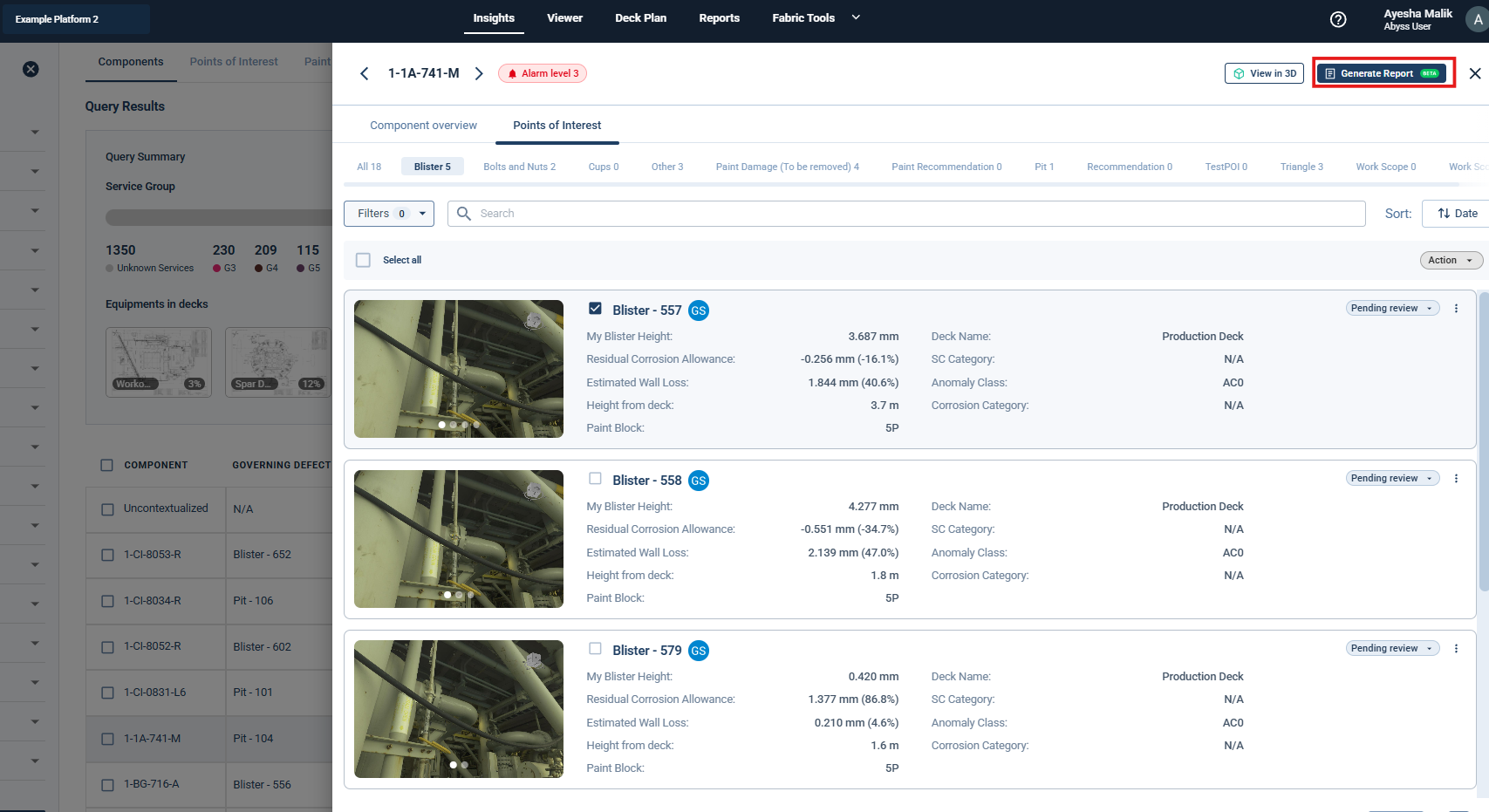
Once the review is complete, Inspectors can generate a structured report directly from the Component Overview tab.
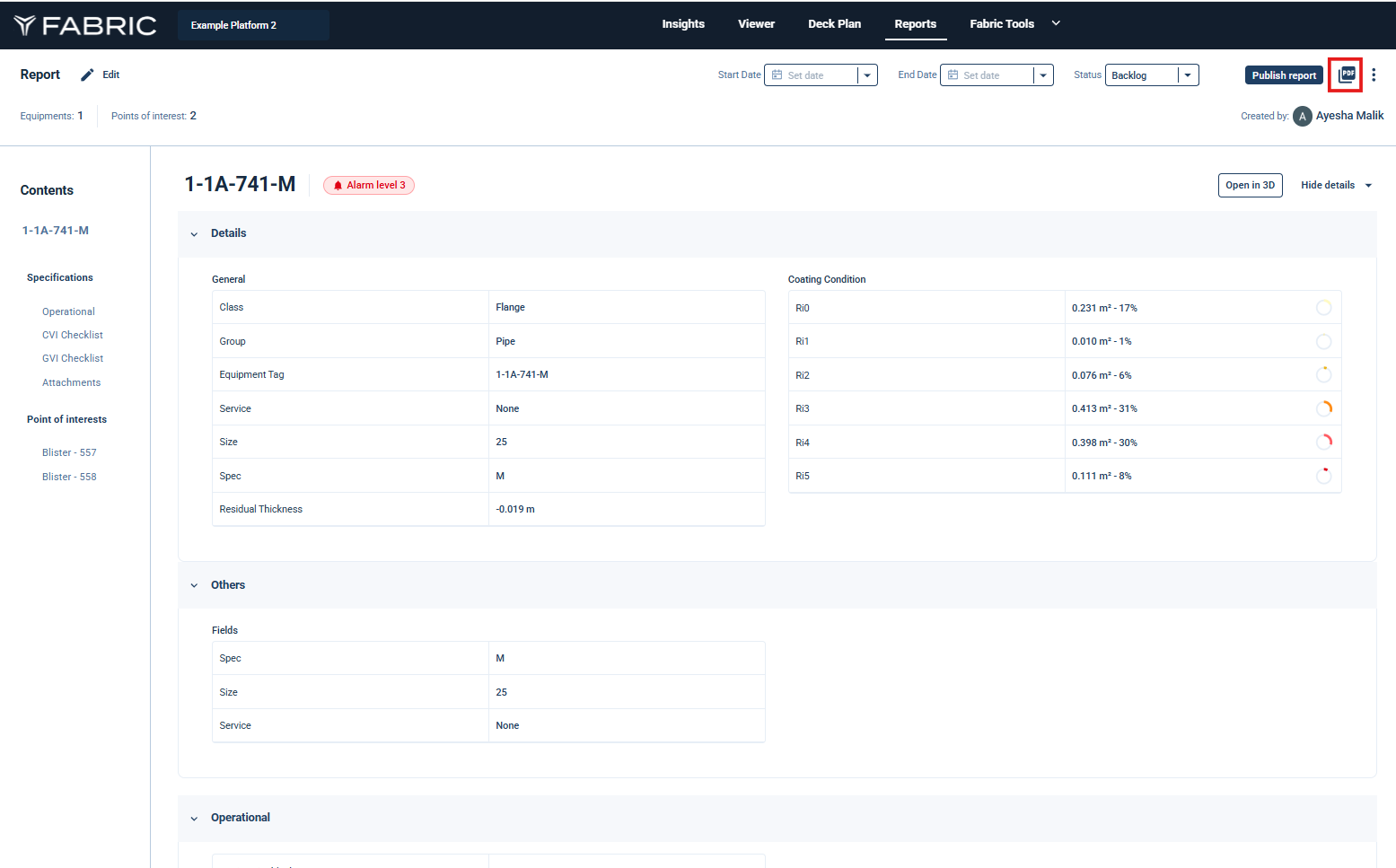
Clicking the “Generate Report” button initiates report generation and redirects the user to the Report tab. Within this tab, the system compiles a formatted report using the information captured during the review process.
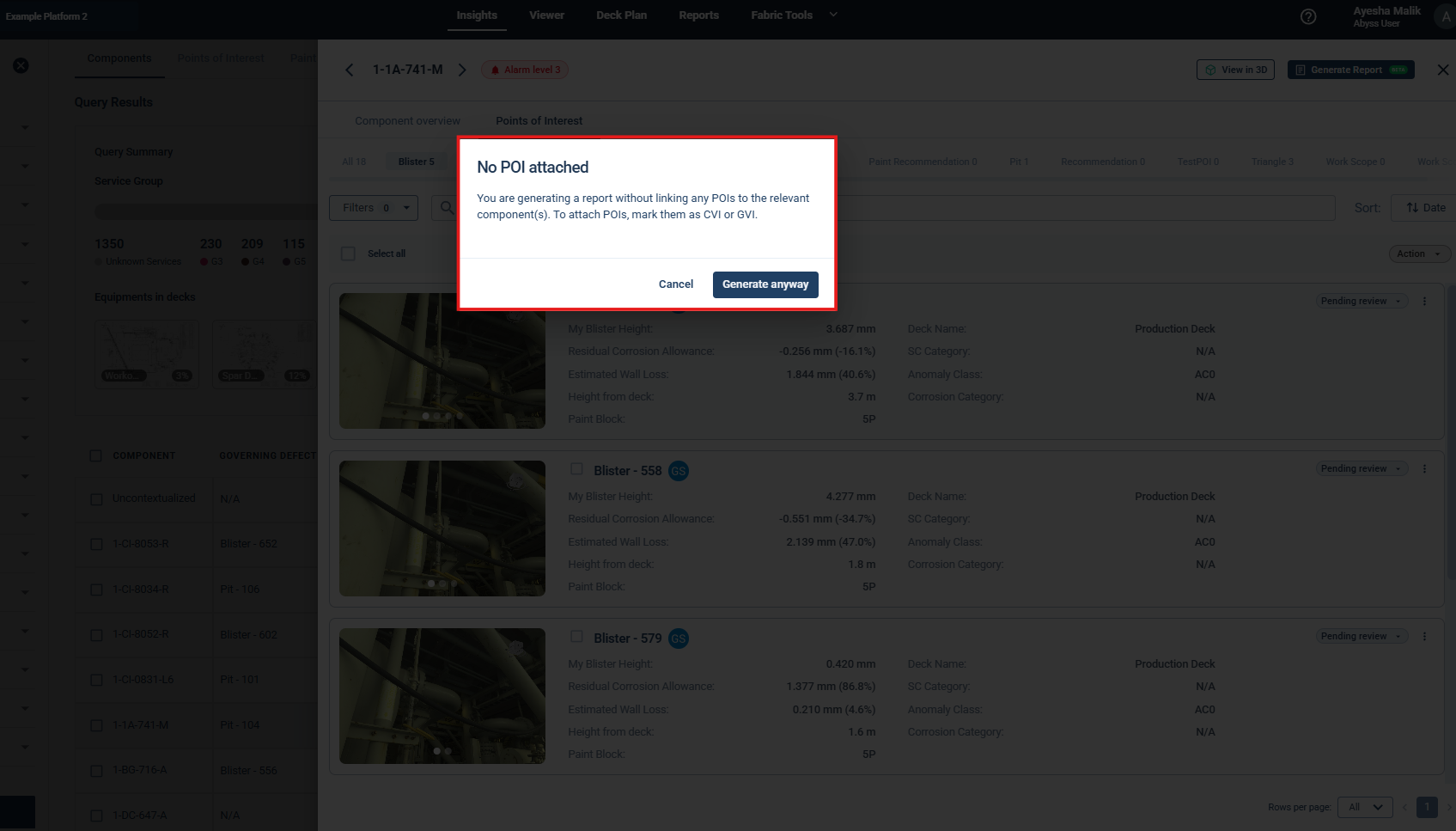
Generating an empty report will show the following prompt, proceed as per the requirements
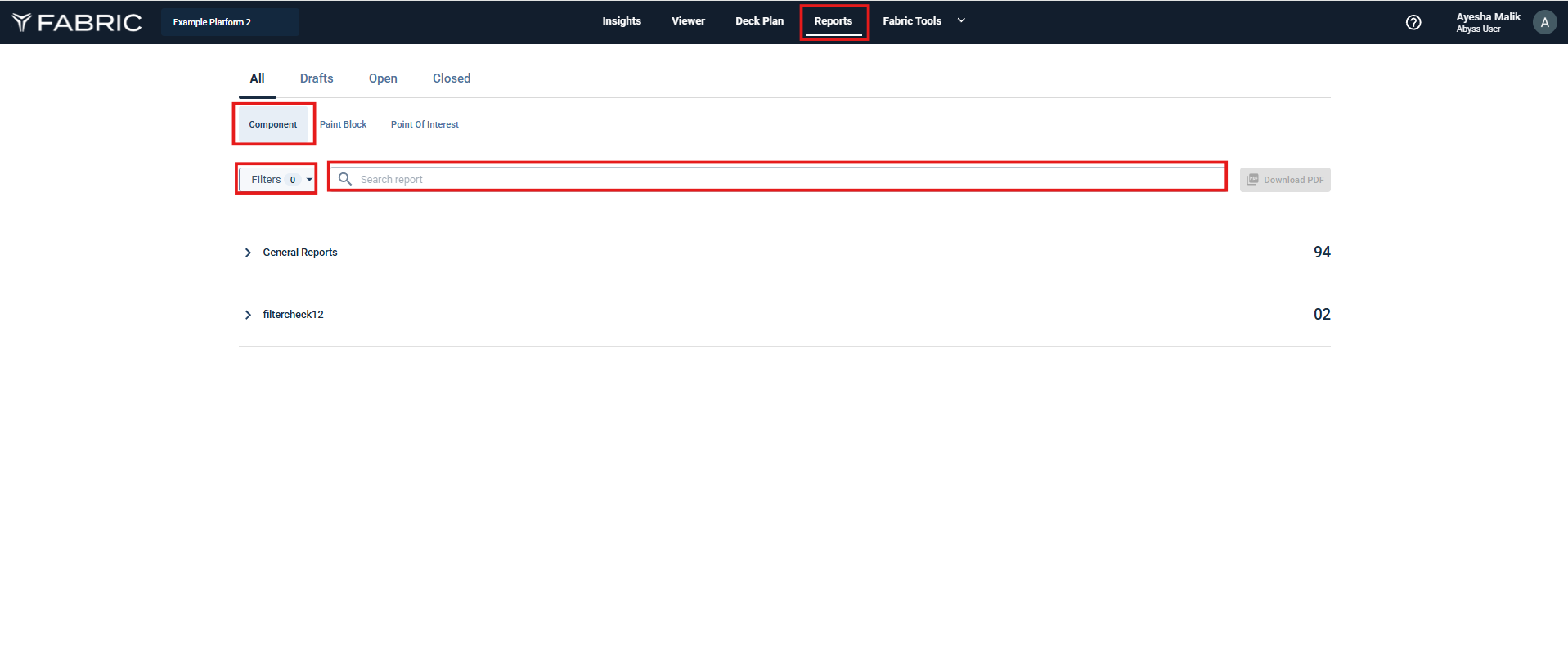
Under the Component Reports section, the generated report for the selected component will be available.
You can search by report name or other identifiers to quickly locate and review the specific report.
ii. Viewer
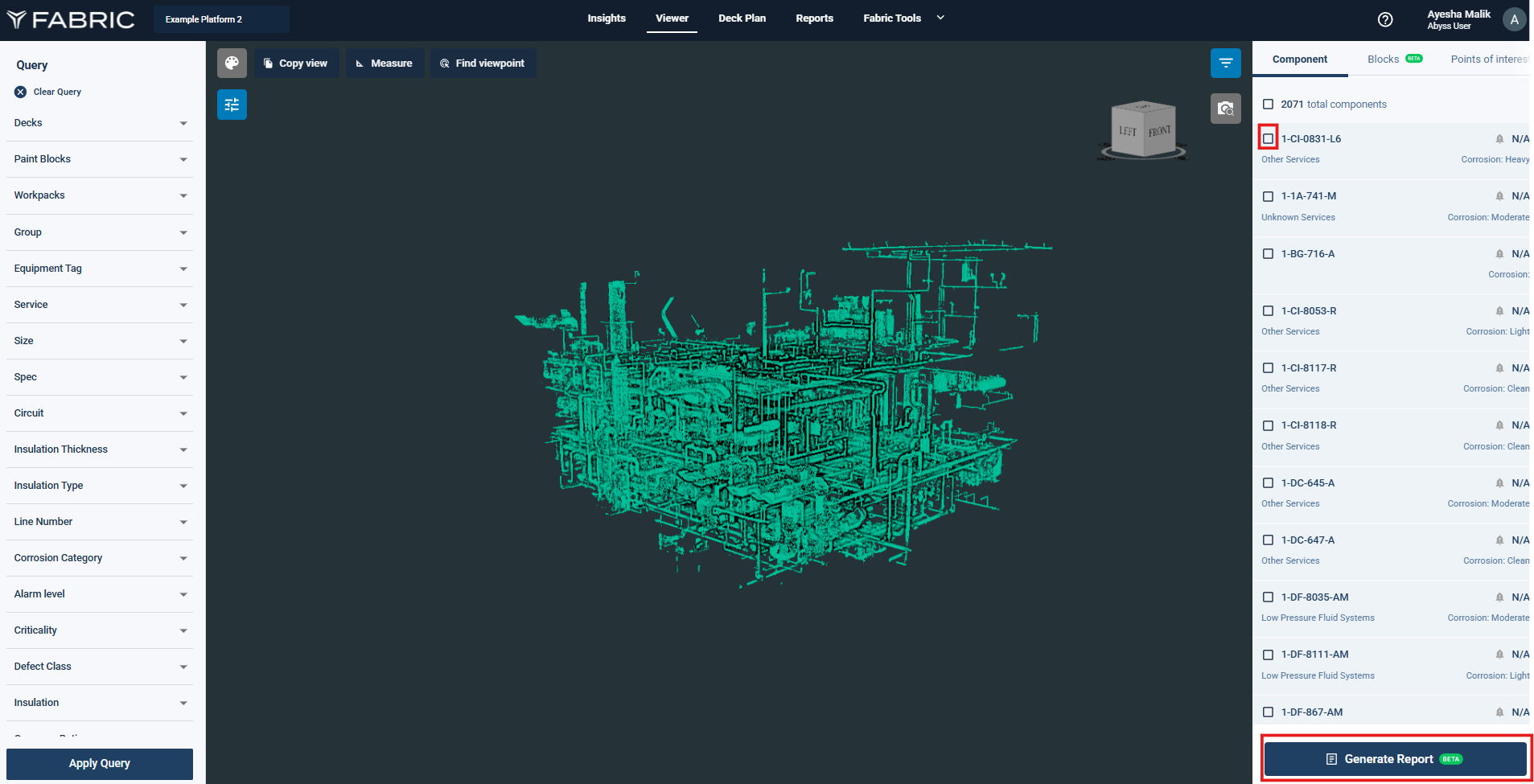
Report can also be created by using Viewer.
Select a component from the component tab in the right
Click on the “Generate Report” button and the report will be available.
b. Key Sections
The report includes the following key sections:
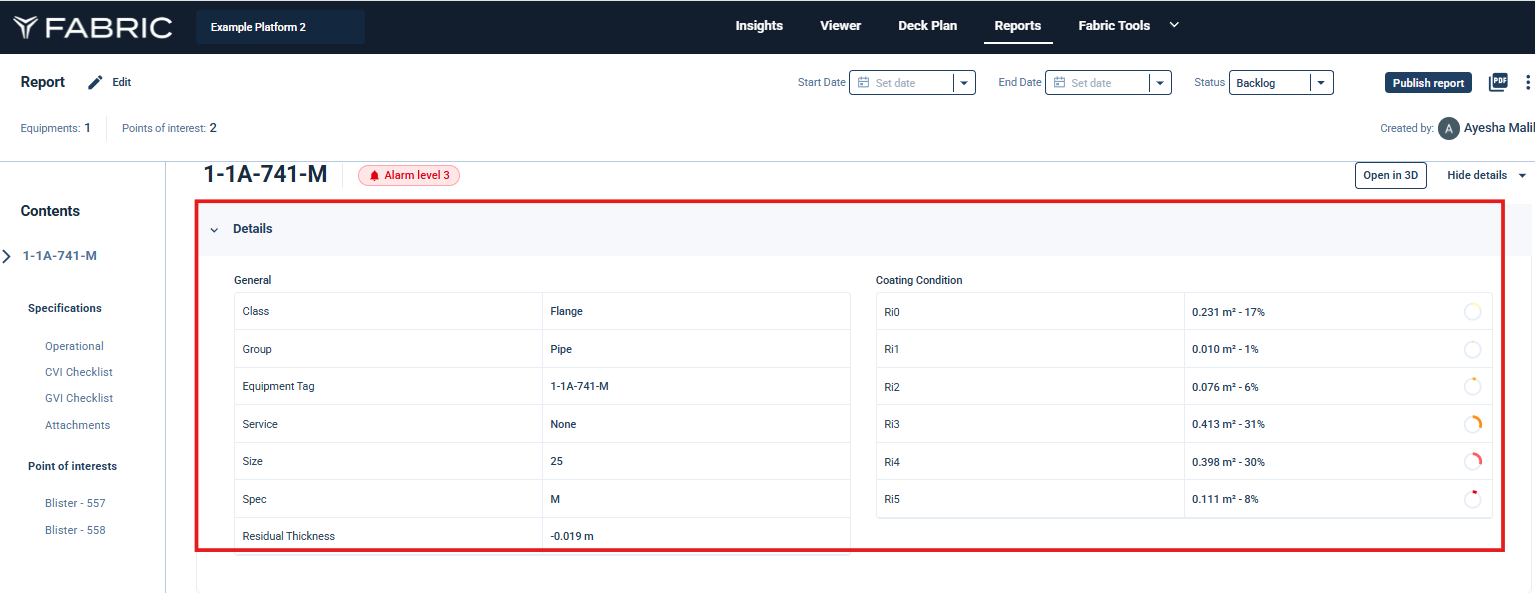
i. Component Information
This section contains structured data relevant to the component under inspection:
Component Details
Asset Data
Condition Assessment
ii. CVI/GVI Checklist
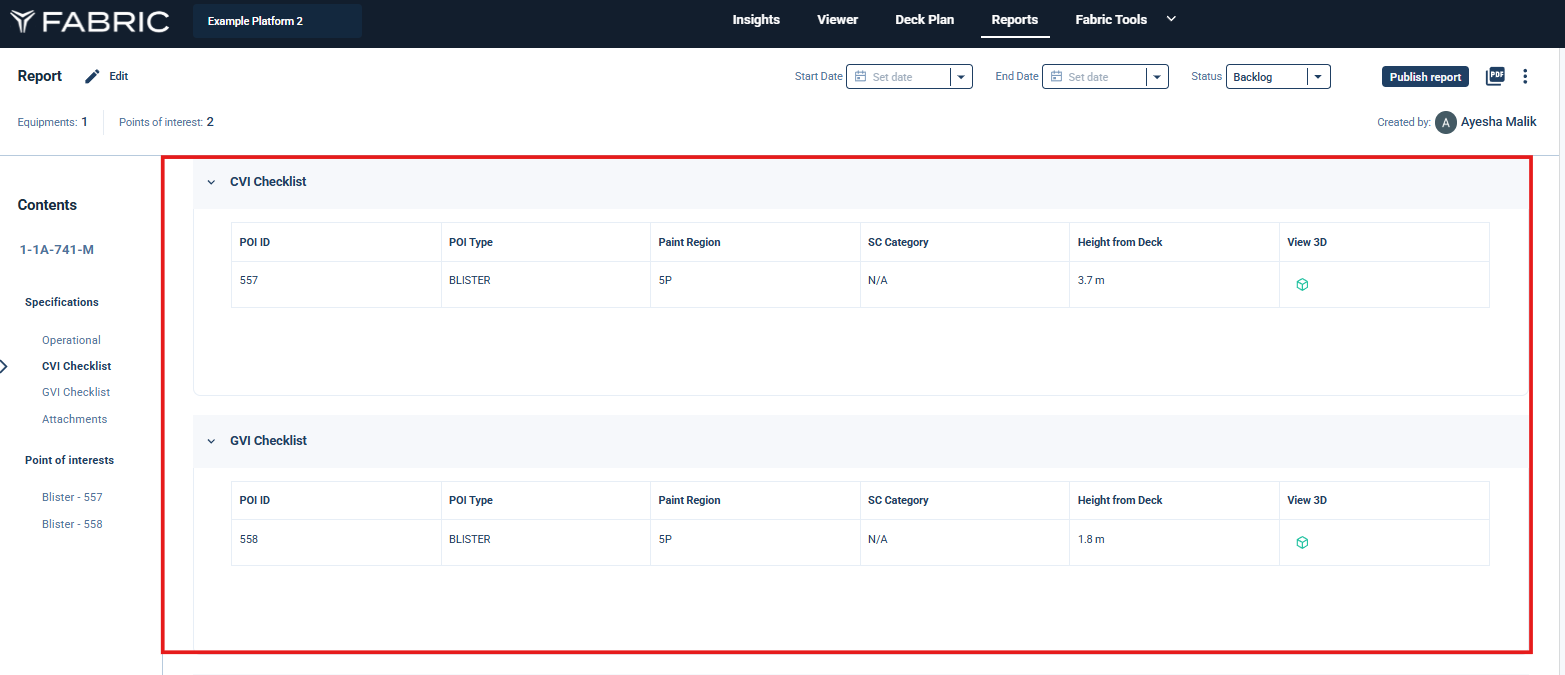
This section lists the Points of Interest (POIs) that were scoped as part of the Close Visual Inspection (CVI) and General Visual Inspection (GVI) by the Inspector.
It enlists the POI in tabular form with the following information:
POI ID
POI Type
POI Categorization/ Classification
Height from Deck
Paint Region
iii. Component Attachments
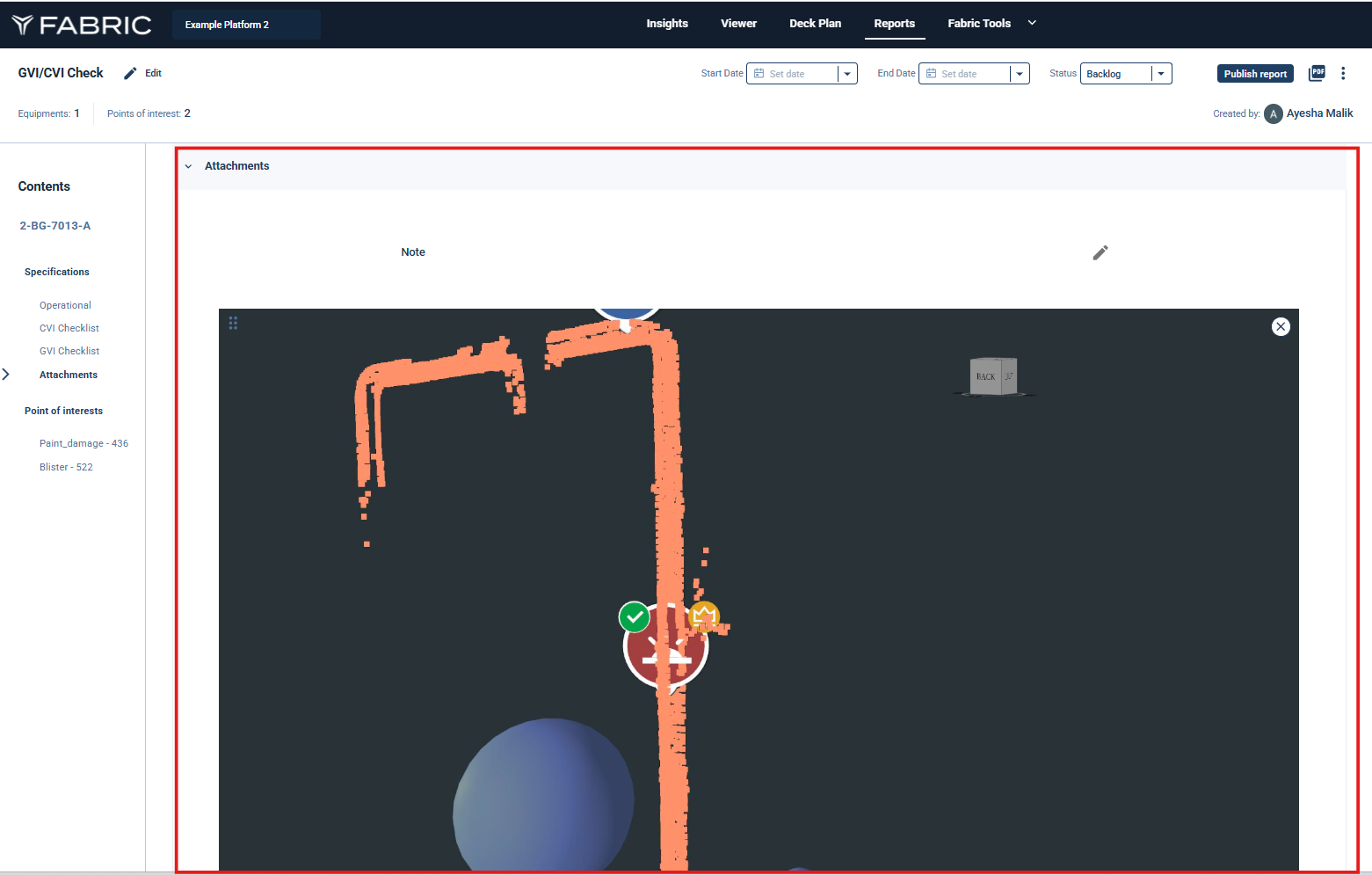
All images attached at the component level (such as overview screenshots captured using the 3D Viewer with various overlay settings) are added here.
Notes at component level can also be edited/added here.
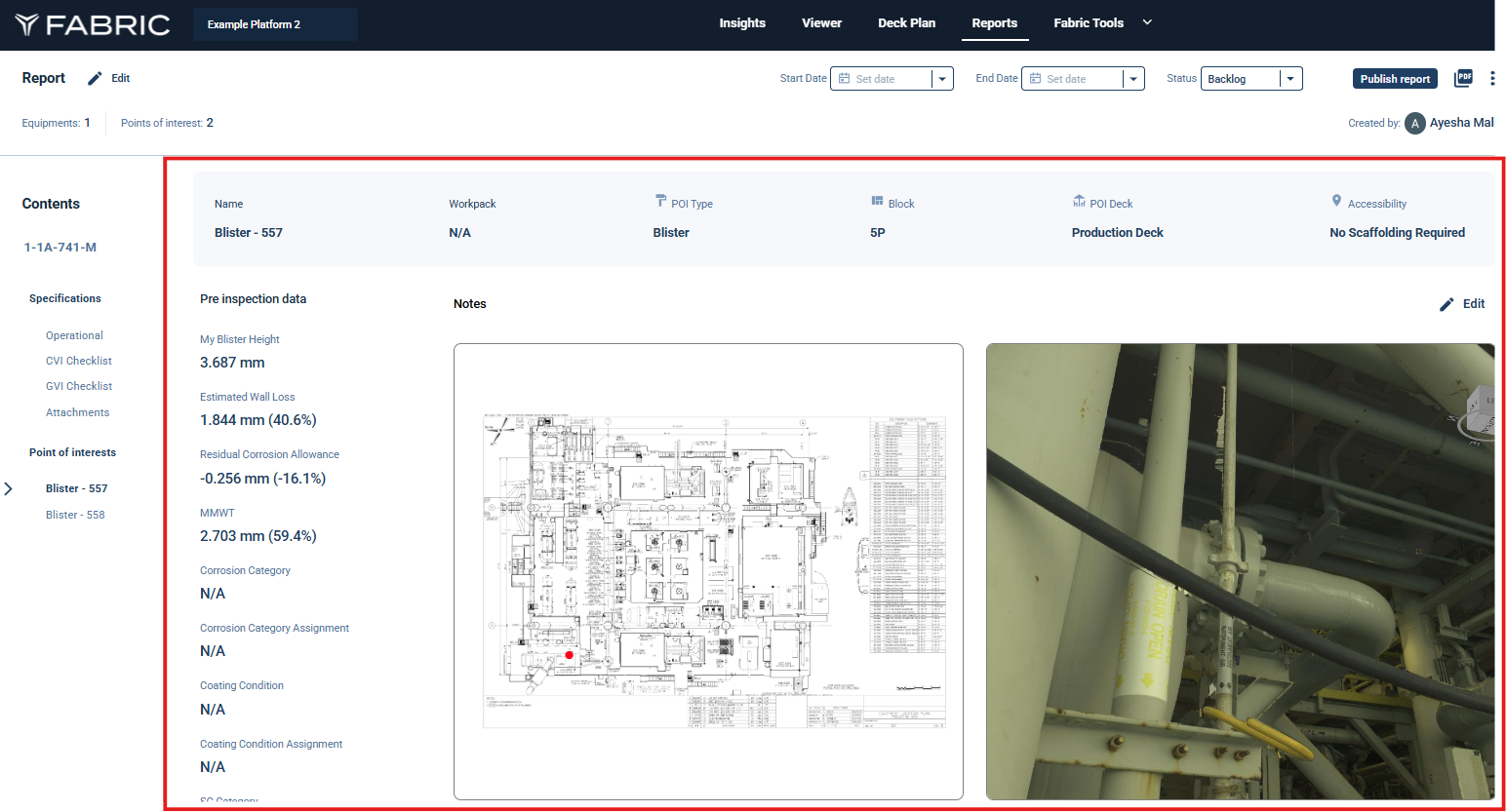
iv. POI Metadata Table
This section presents a detailed table of metadata for each included POI, such as:
POI Name and ID
Paint Block
POI Height from Deck
Any other configured fields
Each POI entry is accompanied by:
Deck Images
Captured Images from 3D Viewer
Any additional images attached to the POI
Captions and Notes added by the Inspector to provide context (Can be edited)
c. Export
Download a PDF containing all relevant component and POI details using the export button.